
How to set up forwarding in Telegram
Repost posts from the channels you follow to your own group or channel, with your own filters, words and affiliate tags. It takes about a minute.
Set up Telegram forwarding in 1 minute
Follow channels with a link, forward to your group or a topic, filter by keywords, choose content types, clean out promos and add your own header and footer.
Step by step
1. Follow the channels you want to repost
In Browse, subscribe to the channels whose posts you want in your group or channel. You can also add any public channel by @username.
2. Open Forwarding and tap “New forwarding rule”
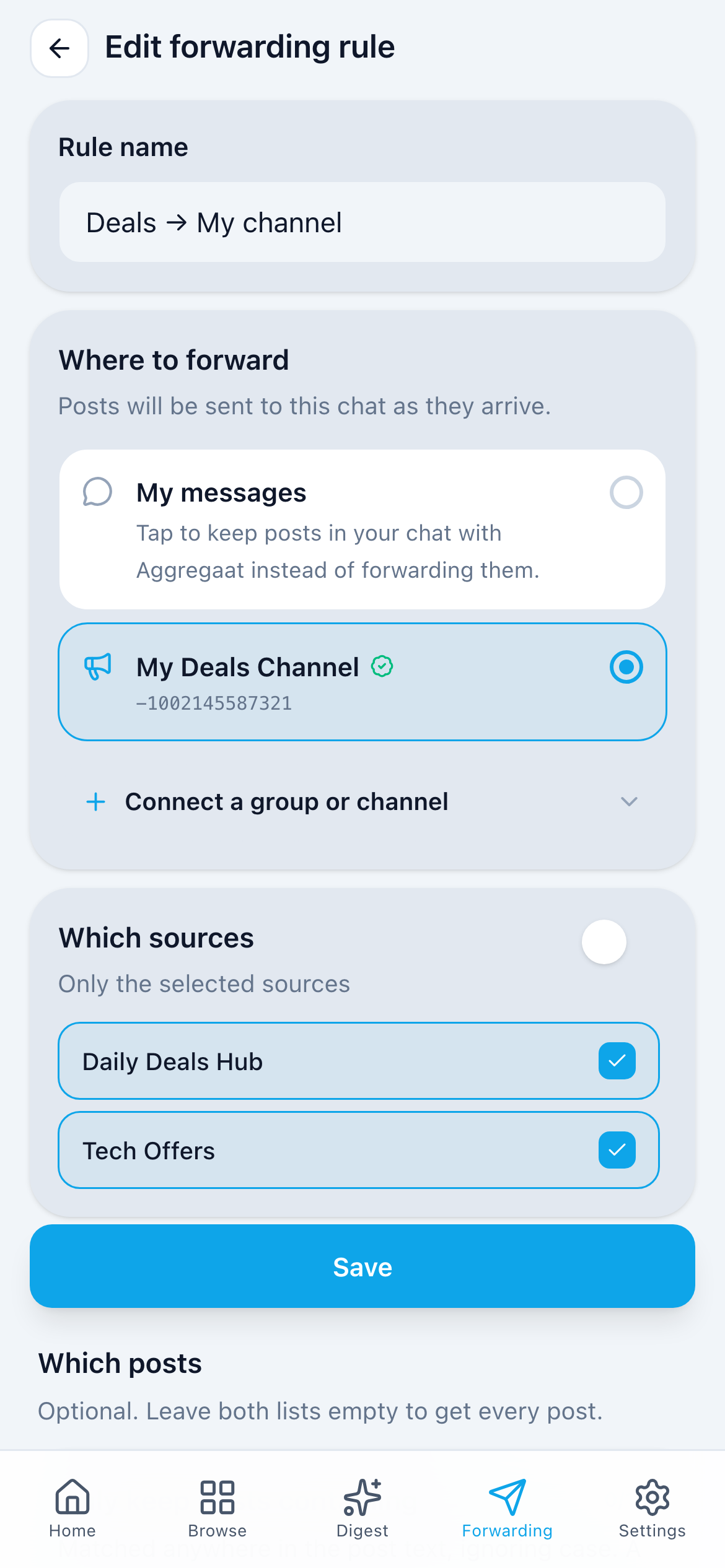
Each rule sends posts to one group or channel. There is one rule per chat: to change what a chat receives, edit its rule.
3. Name your rule
Under Rule name, use something you’ll recognise later, like “Deals → My channel”.
4. Pick your group or channel
Under Where to forward, pick a chat that’s already connected, or tap “Connect a group or channel”. Telegram opens its picker and adds the bot with posting rights in one tap.
5. Optional: post into a topic
Group with topics? Under Topic in this group, paste the topic’s link: open the topic in Telegram, tap its name at the top and copy the link. Leave it empty to post in the group’s main chat. Premium and Elite.
6. Choose which channels to repost
Under Which sources, keep all your sources, including ones you follow later, or select specific channels.
7. Optional: keep or skip posts by keyword
Under Which posts, fill “Only keep posts containing” or “Skip posts containing”. Leave both empty to get every post.
8. Optional: change links and words
Under Link & word replacement, Premium gets 1 change per rule: replace a word or link, or remove a line. Elite gets 5, including your own Amazon and Flipkart affiliate tags.
9. Optional: hide or rename the source
Under Post footer, Premium and Elite can hide the source channel name, or write their own footer with links, up to 3 lines, and a line above every post.
10. Save
Tap “Save”. New posts from your sources start arriving in your chat. Sources that a rule forwards no longer also arrive in your bot chat.
Good to know
- The free Standard plan includes 1 forwarding rule, Premium 3 and Elite unlimited.
- My messages, your chat with the bot, has its own filters and doesn’t count as a rule.
- If the bot is removed from your chat, the rule pauses and the app shows a warning. Add the bot back and switch the rule on again.
- Changes to a rule apply to the next post that arrives.
Create your first forwarding rule
Open Aggregaat in Telegram and follow the steps above. No login, no chat IDs.
Start in Telegram